> ## Documentation Index
> Fetch the complete documentation index at: https://docs.zonavirtual.com/llms.txt
> Use this file to discover all available pages before exploring further.

# Creación factura manual

Permite registrar facturas individuales desde el módulo administrativo.

***

<Steps>
  <Step title="Ingresar al módulo">
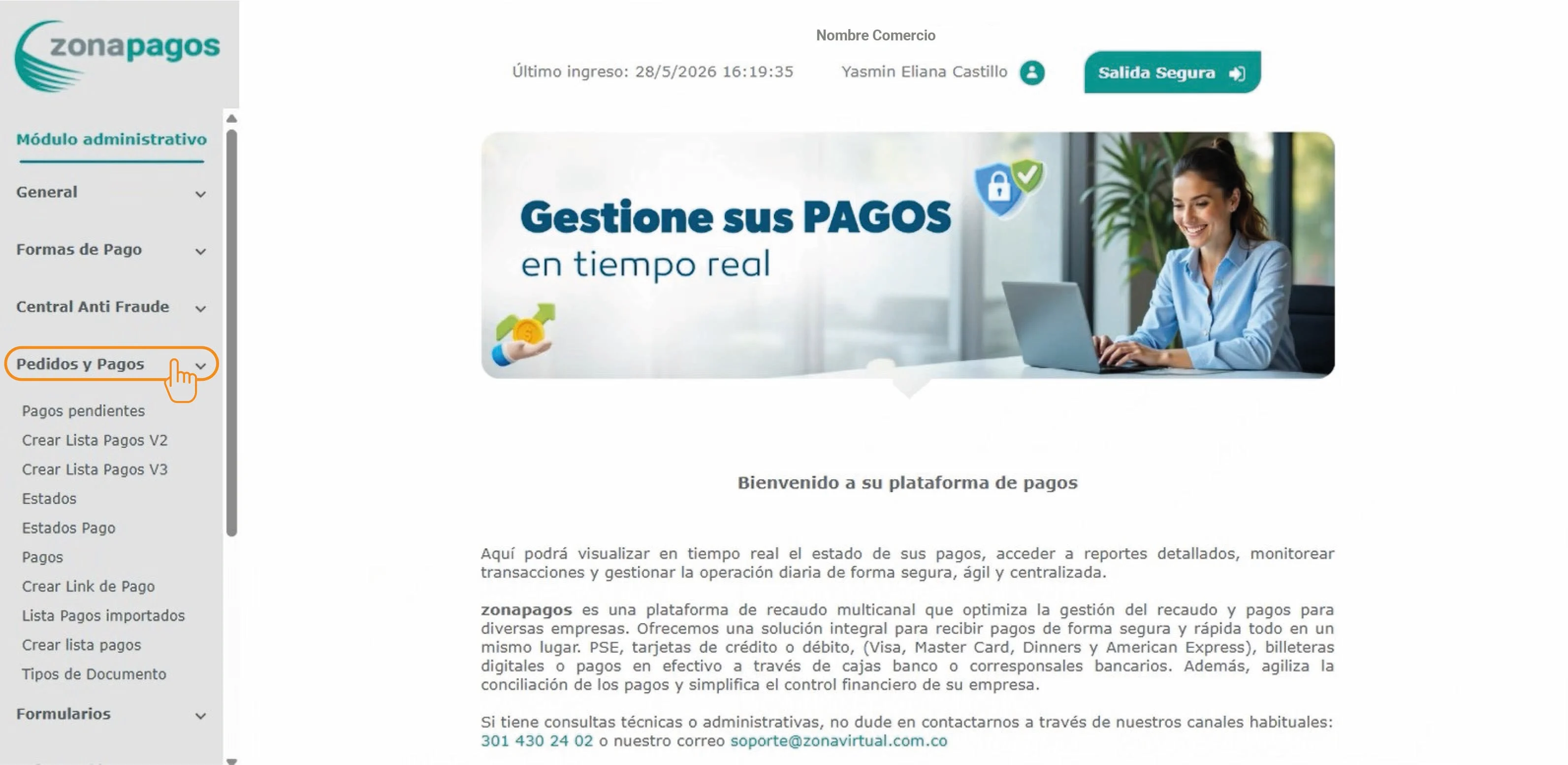
    Pedidos y pagos

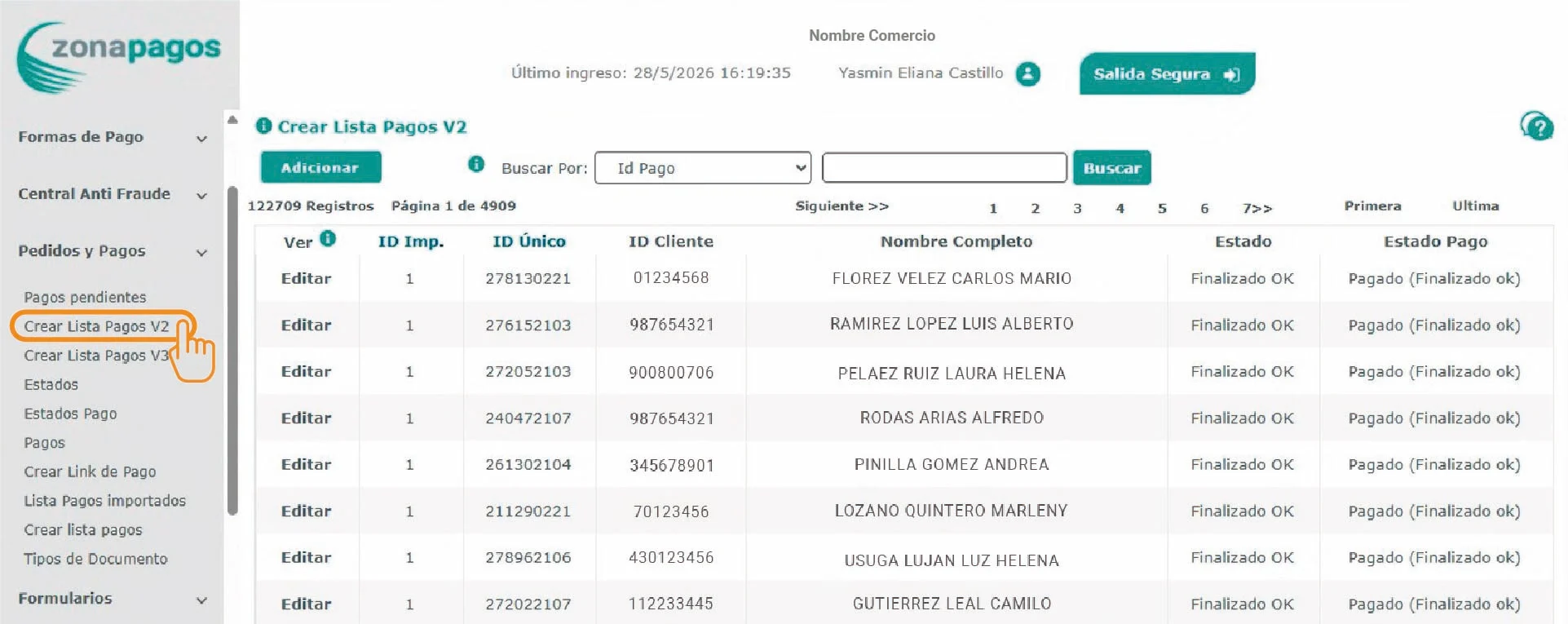
    Crear lista pagos V2
  </Step>

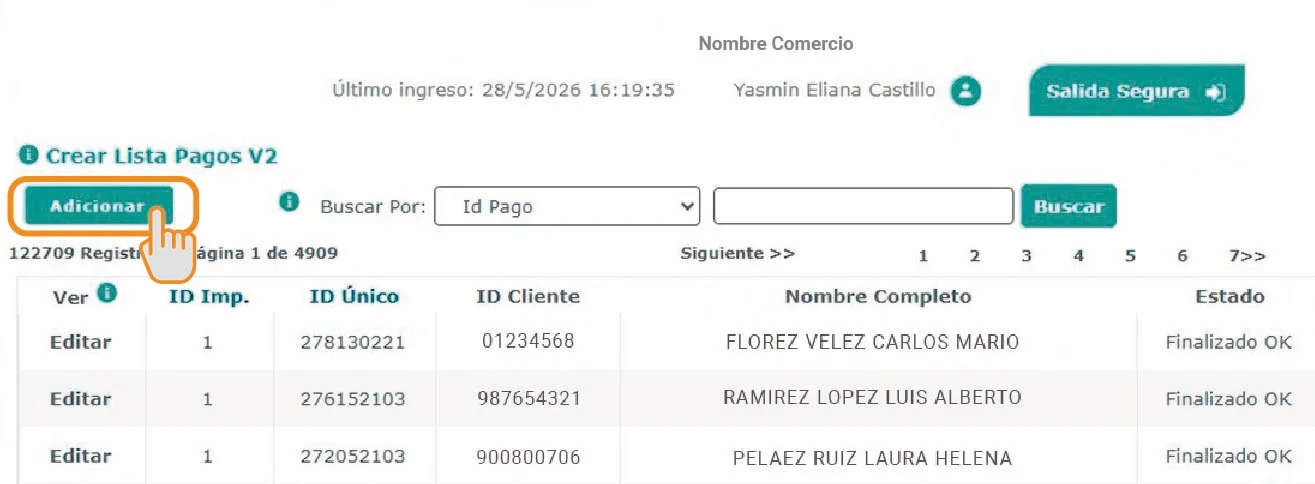
  <Step title="Seleccionar Adicionar">
    Crear nuevo registro.
  </Step>

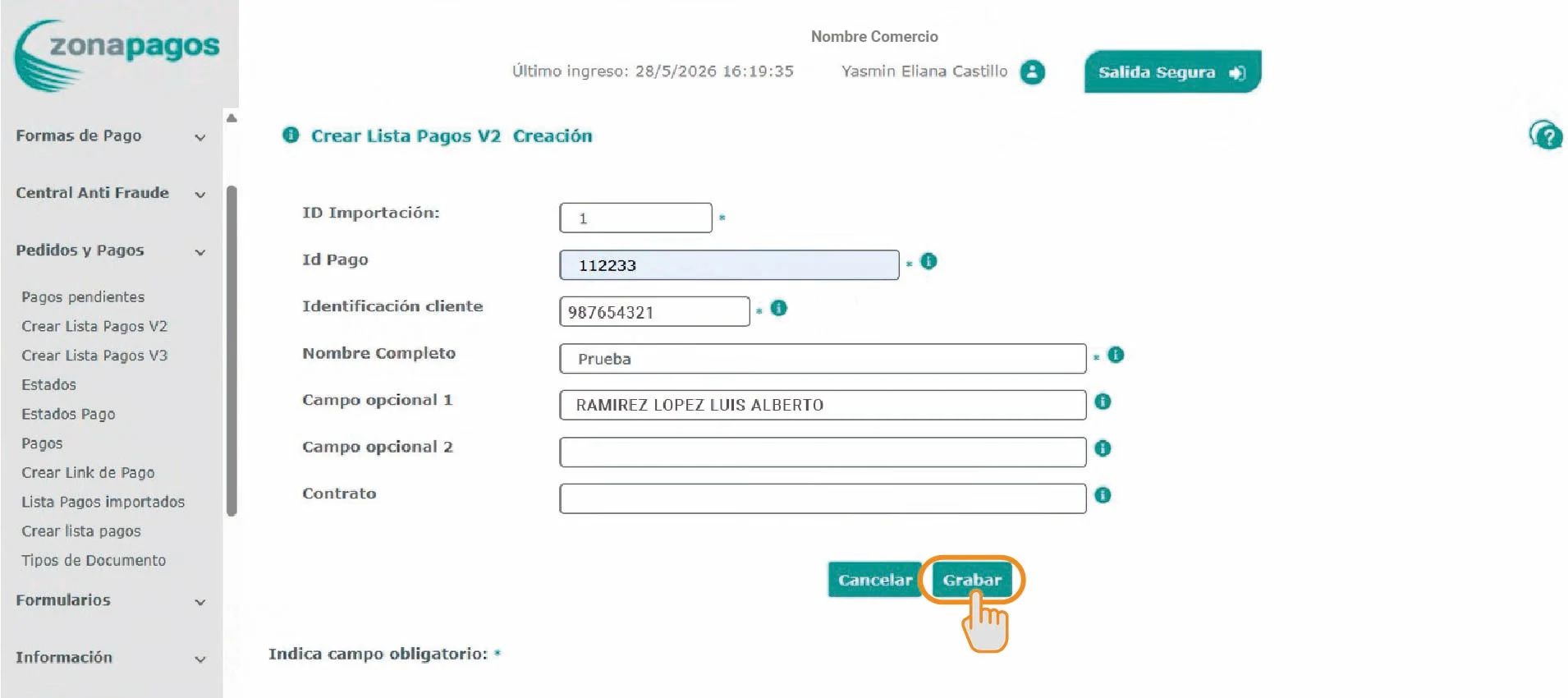
  <Step title="Completar información">
    Diligenciar campos requeridos.
  </Step>

  <Step title="Guardar">
    Seleccionar Grabar.
  </Step>
</Steps>

## Pasos para la creación

1. Seleccionar "pedidos y pagos"

<div style={{ textAlign: "center", margin: "24px 0" }}>
  <img
    src="https://mintcdn.com/zonavirtualsa/3DNFQEHB2cxZnLhN/docs/imagenes/pedidos-y-pagos.jpg?fit=max&auto=format&n=3DNFQEHB2cxZnLhN&q=85&s=01f82de935b6fd653993975dbc659925"
    style={{ 
  width: "100%",
  maxWidth: "500px",
  borderRadius: "6px",
  boxShadow: "0 10px 30px rgba(0,0,0,0.15), 0 2px 10px rgba(0,0,0,0.1)"
}}
    width="3185"
    height="1553"
    data-path="docs/imagenes/pedidos-y-pagos.jpg"
  />
</div>

2. seleccionar "crear lista pagos V2"

<div style={{ textAlign: "center", margin: "24px 0" }}>
  <img
    src="https://mintcdn.com/zonavirtualsa/3DNFQEHB2cxZnLhN/docs/imagenes/crear-lista-pagos-v2.jpg?fit=max&auto=format&n=3DNFQEHB2cxZnLhN&q=85&s=2279b6d4a9045126c113ea4819966e71"
    style={{ 
  width: "100%",
  maxWidth: "500px",
  borderRadius: "6px",
  boxShadow: "0 10px 30px rgba(0,0,0,0.15), 0 2px 10px rgba(0,0,0,0.1)"
}}
    width="1923"
    height="765"
    data-path="docs/imagenes/crear-lista-pagos-v2.jpg"
  />
</div>

3. Seleccionar "adicionar"

<div style={{ textAlign: "center", margin: "24px 0" }}>
  <img
    src="https://mintcdn.com/zonavirtualsa/3DNFQEHB2cxZnLhN/docs/imagenes/seleccionar-adicionar.jpg?fit=max&auto=format&n=3DNFQEHB2cxZnLhN&q=85&s=6dc22bf1727e24d80ff55e8def7db08f"
    style={{ 
  width: "100%",
  maxWidth: "500px",
  borderRadius: "6px",
  boxShadow: "0 10px 30px rgba(0,0,0,0.15), 0 2px 10px rgba(0,0,0,0.1)"
}}
    width="1315"
    height="484"
    data-path="docs/imagenes/seleccionar-adicionar.jpg"
  />
</div>

4. Diligencio todos los campos requeridos y dar click en "grabar"

<div style={{ textAlign: "center", margin: "24px 0" }}>
  <img
    src="https://mintcdn.com/zonavirtualsa/3DNFQEHB2cxZnLhN/docs/imagenes/grabar.jpg?fit=max&auto=format&n=3DNFQEHB2cxZnLhN&q=85&s=fb2030a2d0e8f6ea9b37842ae257273e"
    style={{ 
  width: "100%",
  maxWidth: "500px",
  borderRadius: "6px",
  boxShadow: "0 10px 30px rgba(0,0,0,0.15), 0 2px 10px rgba(0,0,0,0.1)"
}}
    width="1910"
    height="850"
    data-path="docs/imagenes/grabar.jpg"
  />
</div>

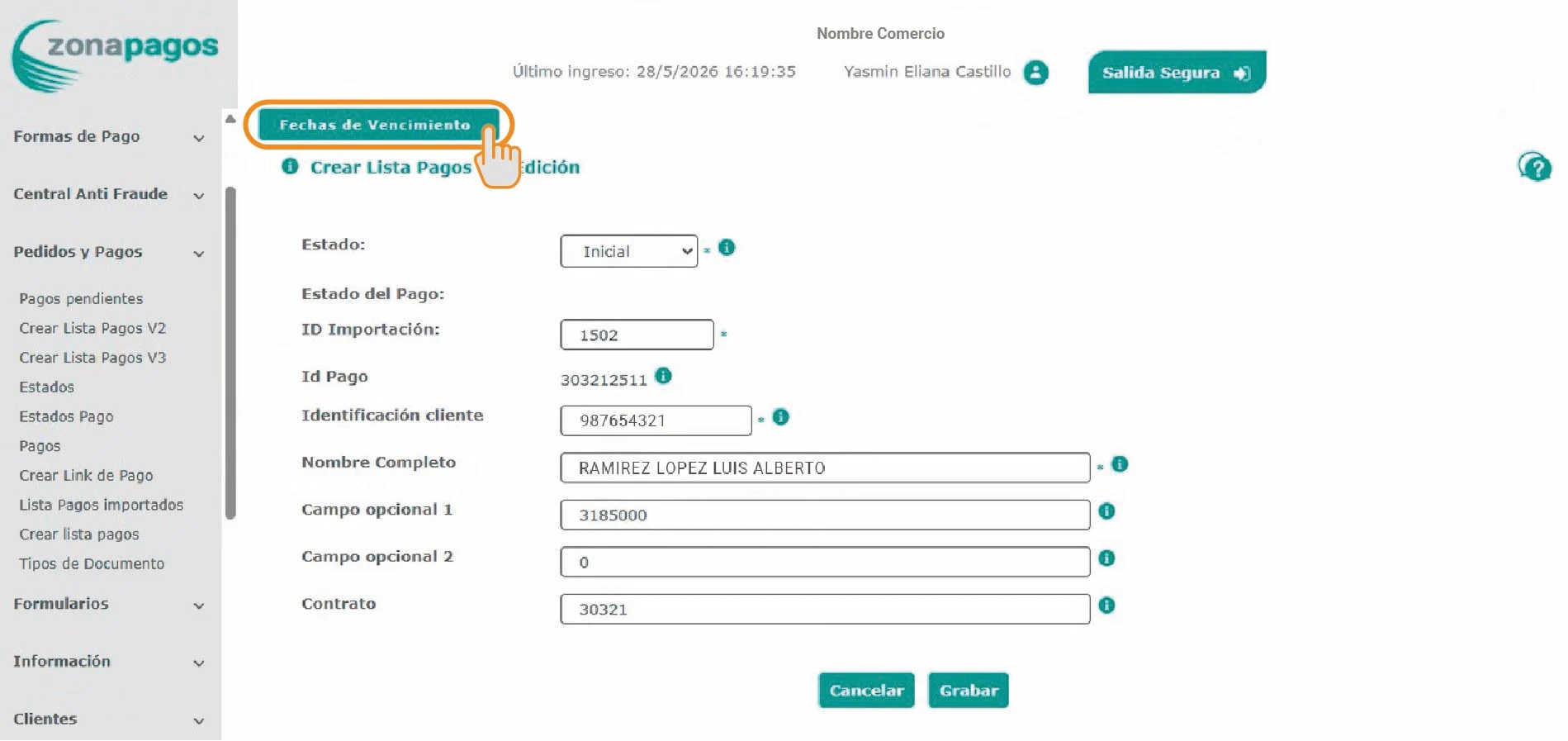
5. Dar click en el boton "Fechas de vencimiento"

<div style={{ textAlign: "center", margin: "24px 0" }}>
  <img
    src="https://mintcdn.com/zonavirtualsa/3DNFQEHB2cxZnLhN/docs/imagenes/fechas-de-vencimiento.jpg?fit=max&auto=format&n=3DNFQEHB2cxZnLhN&q=85&s=8adcbc778c2aa7bad7f90f9656d51947"
    style={{ 
  width: "100%",
  maxWidth: "500px",
  borderRadius: "6px",
  boxShadow: "0 10px 30px rgba(0,0,0,0.15), 0 2px 10px rgba(0,0,0,0.1)"
}}
    width="1899"
    height="897"
    data-path="docs/imagenes/fechas-de-vencimiento.jpg"
  />
</div>

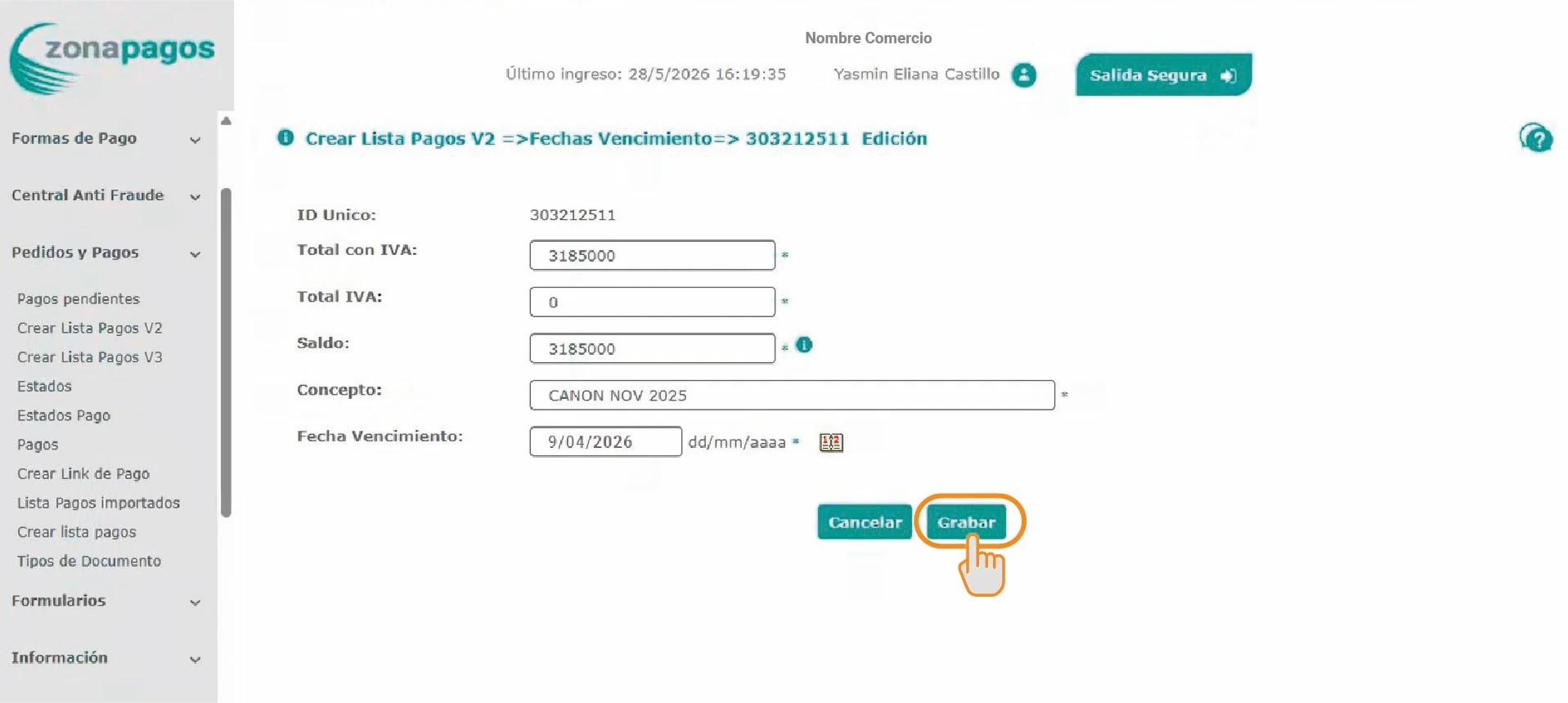
6. Diligencio toda la información y luego click en "grabar"

<div style={{ textAlign: "center", margin: "24px 0" }}>
  <img
    src="https://mintcdn.com/zonavirtualsa/3DNFQEHB2cxZnLhN/docs/imagenes/diligenciar-grabar.jpg?fit=max&auto=format&n=3DNFQEHB2cxZnLhN&q=85&s=9445b4710cf2d9333d76df80e84b8e21"
    style={{ 
  width: "100%",
  maxWidth: "500px",
  borderRadius: "6px",
  boxShadow: "0 10px 30px rgba(0,0,0,0.15), 0 2px 10px rgba(0,0,0,0.1)"
}}
    width="1917"
    height="860"
    data-path="docs/imagenes/diligenciar-grabar.jpg"
  />
</div>

***

## Campos principales

| Campo           | Descripción           |
| --------------- | --------------------- |
| Estado          | Inicial o Archivado   |
| ID importación  | Identificador interno |
| Identificación  | Documento cliente     |
| Nombre completo | Nombre pagador        |
| Campo adicional | Configurable          |
| Contrato        | Relación comercial    |

***

## Estados disponibles

<Tabs>
  <Tab title="Inicial">
    Factura disponible para pago.
  </Tab>

  <Tab title="Archivado">
    Factura cerrada o vencida.
  </Tab>
</Tabs>

***

## Configurar fechas de vencimiento

1. Seleccionar **Fechas de vencimiento**
2. Completar información
3. Seleccionar **Grabar**